The No-Admin Inbox: How I Got to Inbox Zero Without Willpower
I used to spend 2-3 hours daily on email. Now I spend 30 minutes. The difference wasn't discipline — it was systems.
December 7, 2025
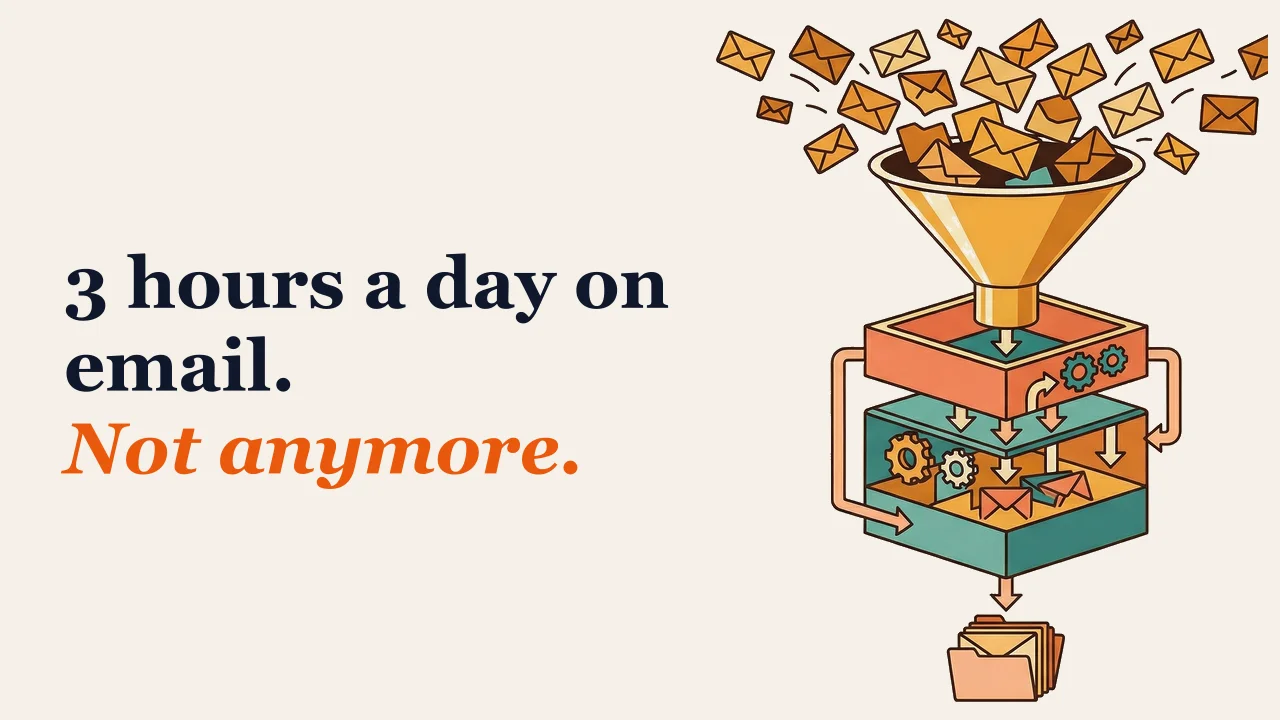
At my worst, I spent three hours a day on email.
Not writing important messages. Just… handling the inbox. Reading, sorting, replying, flagging, searching for things I’d already read. It was a part-time job that produced nothing.
I tried everything. Inbox zero methods. Email batching. Turning off notifications. Unsubscribing from newsletters. Hiring an assistant.
Nothing stuck. Because all of those solutions required willpower. And willpower runs out.
What finally worked was building a system that didn’t require willpower at all.
Now I spend about 30 minutes a day on email. Not because I’m more disciplined — because I removed the decisions that were draining me.
Here’s how.
Why Email Drains You
Email isn’t hard because of volume. It’s hard because of decisions.
Every email requires you to decide:
- Is this important?
- Do I need to respond?
- When should I respond?
- What should I say?
- Where should I file this?
- Do I need to do something about this?
If you get 100 emails a day, that’s 100+ micro-decisions. Decision fatigue is real. By afternoon, you’re fried.
The solution isn’t to be better at deciding. It’s to eliminate decisions.
I’ve written before about why inbox zero might be the wrong goal. This post is about the system that actually works.
The System
My email system has four components:
Component 1: Aggressive Filtering
Most email shouldn’t reach your inbox at all.
I set up filters to automatically:
- Archive newsletters into a “Read Later” folder
- Archive all-staff announcements into an “FYI” folder
- Archive automated notifications (calendar, systems, etc.) into a “Notifications” folder
- Flag emails from my board and leadership team
This alone cut my inbox volume by 60%. The emails still exist if I need them. They just don’t interrupt my attention.
The key insight: filtering isn’t about missing things. It’s about deciding in advance what deserves your attention. A filter is a decision you make once instead of making it every day.
Component 2: Templates for Common Responses
I realized I was writing the same emails over and over:
- Acknowledging receipt of something
- Scheduling meetings
- Declining requests
- Responding to parent concerns
- Answering common questions
I created templates for all of them.
Now when a common email comes in, I don’t compose a response. I grab a template, customize one or two lines, and send. A 10-minute email becomes a 1-minute email.
Some of my most-used templates:
- “Thanks for sending this — I’ll review and respond by [date]”
- “I appreciate you thinking of me for this, but I can’t take on new commitments right now”
- “Let me look into this and get back to you. You should hear from me by [date]”
- “Great question — here’s our policy on this: [link]”
Component 3: AI for First Drafts
This is where AI changed everything.
For non-template emails — ones that require a real, thoughtful response — I used to stare at a blank compose window, trying to find the right words.
Now I give the email to AI and ask for a draft.
My prompt is simple:
“Draft a response to this email. [paste email] Keep it professional but warm. 3-4 sentences max.”
AI gives me a first draft in seconds. I edit it — usually just tweaking tone or adding specifics — and send.
This flips the work from creating to editing. Editing is faster and less draining than creating from scratch.
I cover this in more detail in How I Use Claude to Draft 20 Parent Emails in 15 Minutes.
When I use AI drafts:
- Sensitive parent communications
- Board responses
- Emails where tone matters
- Anything longer than a few sentences
When I don’t use AI:
- Quick acknowledgments (templates are faster)
- Personal messages to people I know well
- Anything confidential that I don’t want in a third-party system
Component 4: Fixed Email Windows
The final piece: I only check email during set windows.
- Morning: 30 minutes to process overnight messages
- Midday: 15 minutes to handle anything urgent
- End of day: 15 minutes to close loops
Outside those windows, email is closed. Not minimized — closed.
This was the hardest habit to build. But it was necessary because email expands to fill available time. If your inbox is always open, you’ll always be doing email.
The key insight: most “urgent” emails aren’t. People expect responses within 24 hours, not 24 minutes. If something is truly urgent, they’ll call or find you.
The Daily Workflow
Here’s what my email time actually looks like:
Morning (30 minutes):
- Scan inbox for anything truly urgent (usually nothing)
- Process flagged emails from board/leadership first
- For each email: decide action (reply now, delegate, schedule, or archive)
- Reply to quick ones with templates
- Use AI to draft longer responses
- Archive everything that doesn’t need action
- Move anything that requires real work to my task list — don’t let email be your task manager
Midday (15 minutes):
- Quick scan for urgent items
- Handle anything time-sensitive
- Close email
End of day (15 minutes):
- Clear remaining inbox items
- Send any pending responses
- Archive everything
- Inbox at zero (or close to it)
Total: 60 minutes. Sometimes less.
What I Stopped Doing
Just as important as what I do is what I stopped doing:
I stopped using email as a to-do list. If something requires action, it goes to my actual task list. Emails sitting in my inbox as reminders were just creating visual noise and decision fatigue.
I stopped writing perfect emails. Most emails don’t need to be perfect. They need to be clear, timely, and done. My templates and AI drafts are good enough. Good enough is the point.
I stopped replying immediately. Instant responses train people to expect instant responses. I broke that pattern by responding in my windows, not in real-time.
I stopped filing everything into elaborate folders. I used to have dozens of folders. Now I have four: Inbox, Read Later, Archive, and Reference. Search is faster than filing.
I stopped apologizing for response time. “Sorry for the delayed response” was a fixture of my emails. I dropped it. Nobody noticed.
The Results
This system has been running for over a year. The results:
- Email time: from 2-3 hours to 30-60 minutes daily
- Inbox at end of day: usually zero or under 10
- Response time: same as before (within 24 hours for most things)
- Stress about email: dramatically lower
- Time reclaimed: roughly 10 hours per week
That’s 10 hours I now spend on work that actually matters, or on not working at all.
How to Start
If your inbox is a disaster, you don’t need to overhaul everything at once. Start with one component:
Week 1: Set up 3-5 filters for your highest-volume, lowest-importance emails. Get them out of your inbox automatically.
Week 2: Create 5 templates for your most common responses. Use them whenever they fit.
Week 3: Try AI drafting for your next 10 non-template emails. See if editing is faster than writing.
Week 4: Experiment with fixed email windows. Start with just closing email for one hour of focused work.
Build the habit before optimizing the system. An imperfect system you actually use beats a perfect system you abandon.
Email isn’t going away. But it doesn’t have to run your day.
This email system is one piece of the No-Admin Second Brain I’m building — a complete toolkit for school leaders who want to reclaim their time. Join the waitlist if you want early access.
Or if you want help building a system like this now — let’s talk.

Want help building systems like this?
We help school leaders automate the chaos and get their time back.