I Turned Rough Meeting Notes Into a Board Presentation in 60 Seconds
Gamma takes your bullet points, a document, or even just a topic and generates a full presentation with layout, images, and content. Here's the exact workflow — and where it falls short.
March 13, 2026
The Meeting That Started This
I had 40 minutes between a leadership team meeting and a board presentation. My notes were a mess - half-sentences, acronyms, arrows connecting ideas that made sense an hour ago and would mean nothing to anyone else.
I needed 10 polished slides. I had no time, no designer, and no patience for blank-slide paralysis in PowerPoint.
So I pasted my notes into Gamma. Sixty seconds later, I had a complete deck - layouts, color scheme, images, structured content. Not perfect. But 80% there, and I spent the remaining 38 minutes editing instead of building from scratch.
That’s the pitch for Gamma: it eliminates the blank page. You bring the substance, it handles the design. Here’s exactly how to use it.
What Gamma Actually Is
Gamma is an AI presentation tool used by millions of people worldwide. You give it a topic, some notes, or a document, and it generates a full presentation - writing the content, choosing layouts, selecting images, and applying a design theme. All at once, in about 30 seconds.
It’s not PowerPoint with AI bolted on. Gamma uses a vertical card-based format instead of traditional 16:9 slides. Each “card” is like a mini webpage - it can include text, images, embeds, expandable sections, and interactive elements. This works beautifully for sharing via link. It’s less ideal for projecting in a conference room (more on that later).
Which Plan You Need
| Plan | Price | What You Get |
|---|---|---|
| Free | $0 | Limited AI credits (enough for roughly 10 presentations). Watermark on exports. |
| Plus | From $10/mo | Unlimited AI generation. No watermark. More cards per deck. |
| Pro | From $20/mo | Advanced AI models. Custom fonts and branding. Analytics (who viewed, how long). |
Pricing and plan details change - check Gamma’s pricing page for the latest numbers.
My recommendation: Start with the free tier to see if you like the format. It gives you enough for several presentations. If you use it regularly, Plus is the sweet spot. Pro is worth it if you need brand control or want to track who actually opened the deck you sent to the board.
Step-by-Step: Your First Presentation
Step 1. Open your browser and go to Gamma. Click “Sign up free.” You can register with a Google account or email. No credit card required.
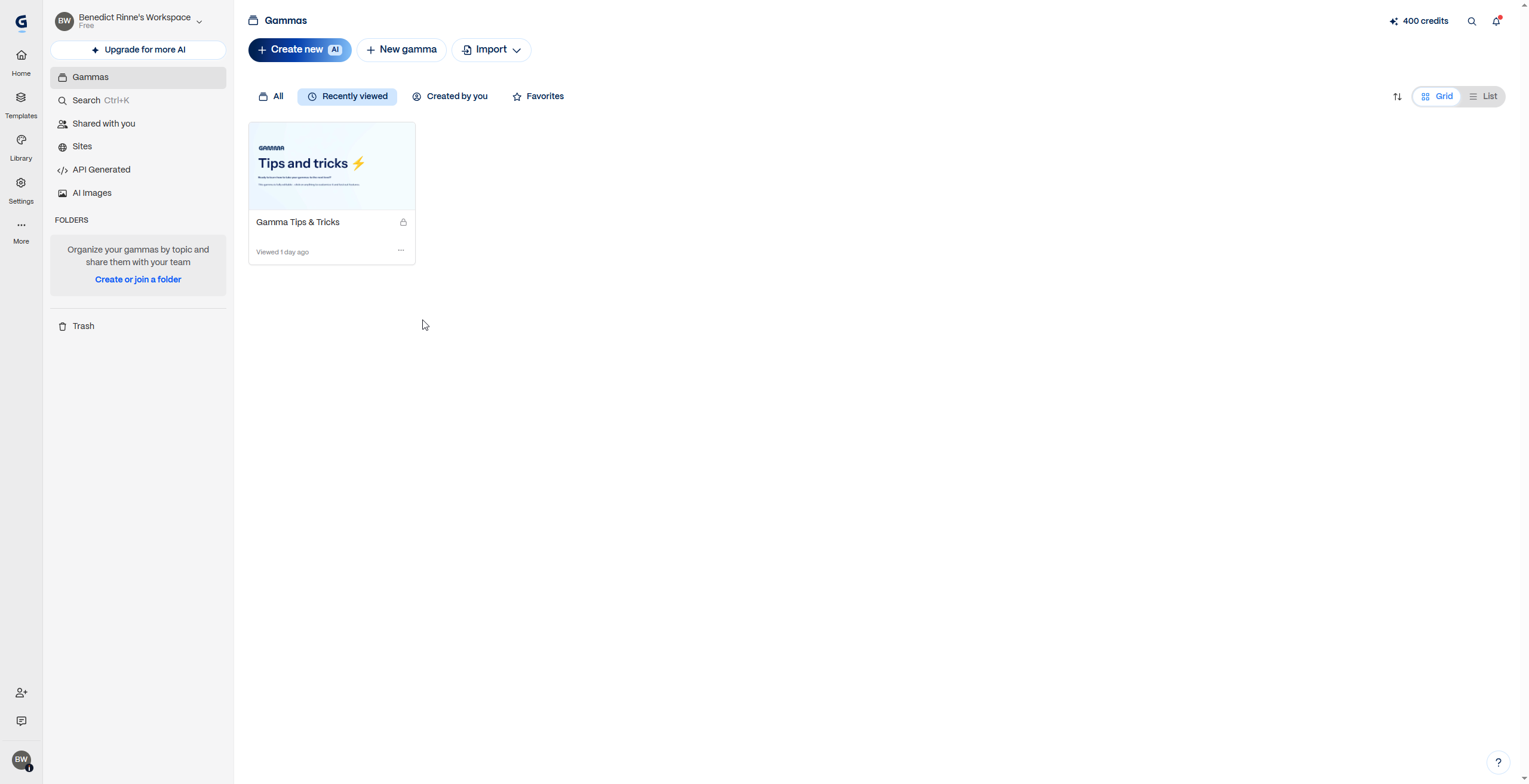
Step 2. Once you’re logged in, you’ll see a clean dashboard. Click “Create New” and choose “Paste in text” - this is what you want when you already have meeting notes or an outline.
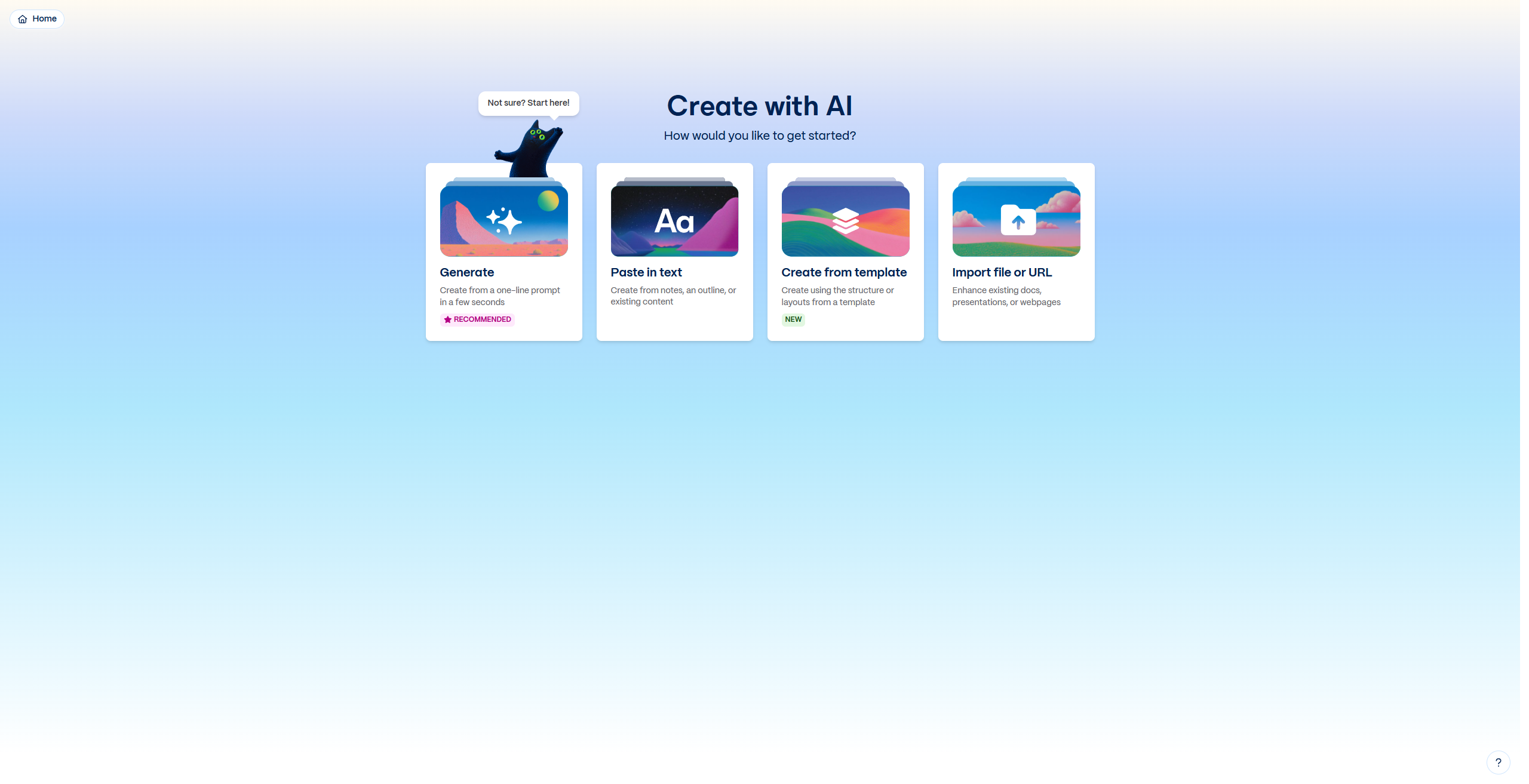
Step 3. Gamma asks you to choose a creation method. You’ll see four options:
- Generate - start from a topic or prompt (best when you have an idea but no written content)
- Paste text - paste existing notes, bullet points, or a draft (best when you already have content)
- Import file - upload a PowerPoint, PDF, Word doc, or paste a URL (best for converting existing presentations)
- Remix - start from an existing Gamma template and adapt it
For your first presentation, choose “Paste text” if you already have notes, or “Generate” if you’re starting from a topic.
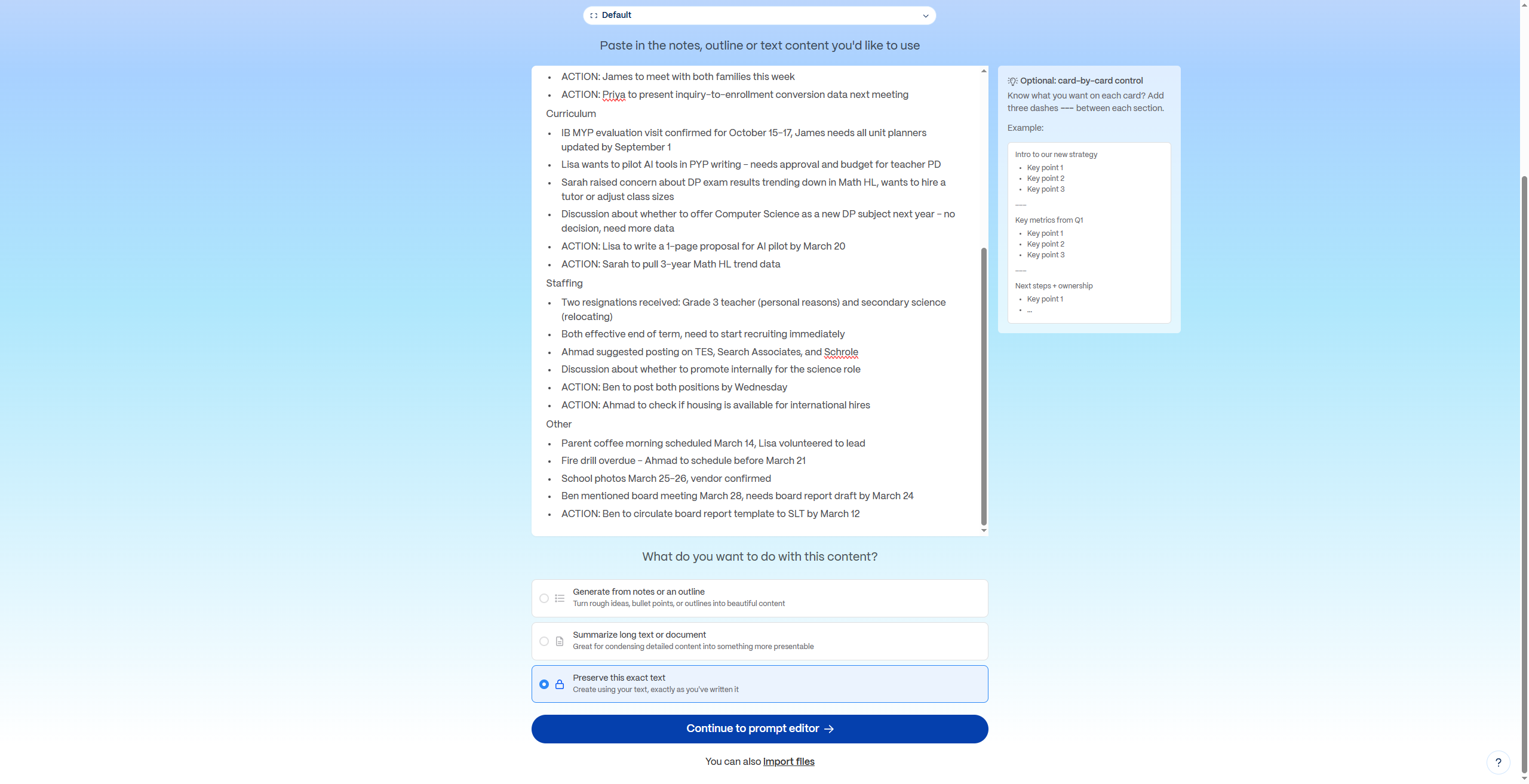
Step 3b. Paste your notes into the text box. Here’s what mine looked like - raw SLT meeting notes, nothing formatted:
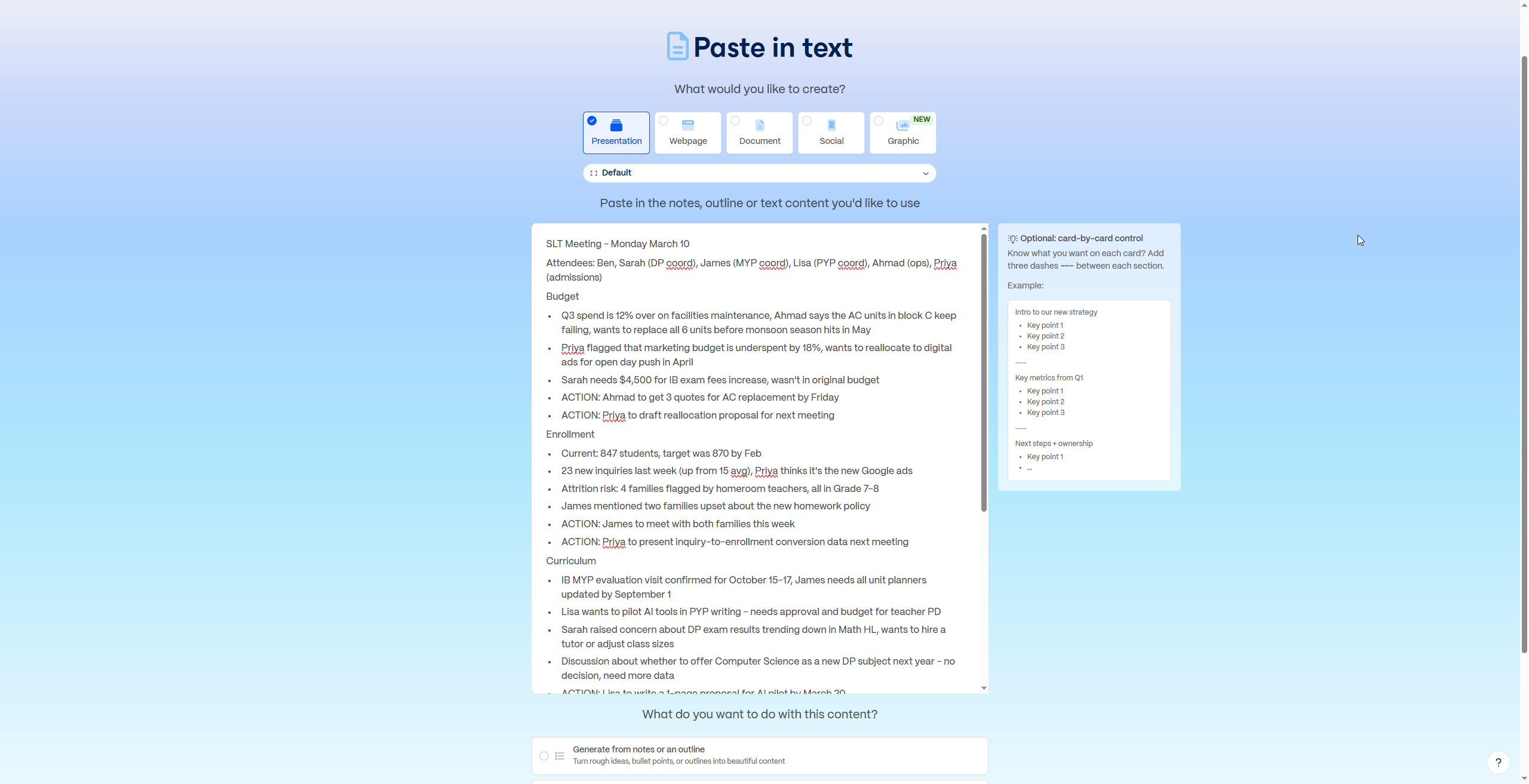
Step 4. Gamma asks what you want to do with the content. Choose “Generate from notes or an outline” - this tells Gamma to restructure your rough notes into polished slides rather than preserving them as-is.
Step 5. You’ll see the Prompt Editor - this is where the magic happens. It has several fields:
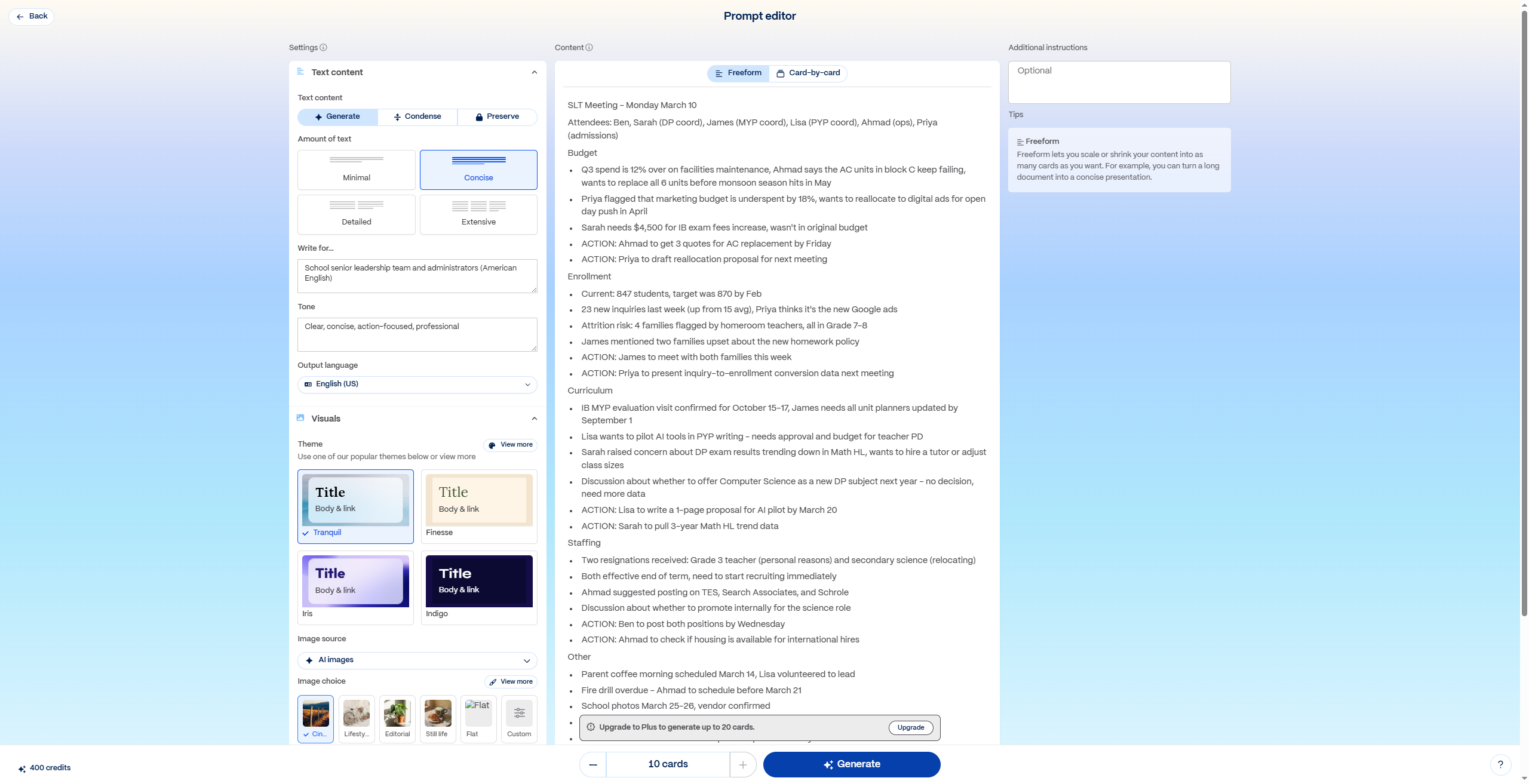
- Your content (left side) - your pasted notes or outline appear here. If you chose “Generate from notes,” this is already filled with what you pasted. Review it and make any quick edits.
- Write for - Gamma auto-detects your audience from the content. It might pre-populate something like “School senior leadership team and administrators.” Adjust if needed, and note that you can specify the English variant (American, British, etc.) here.
- Tone - also auto-detected. You’ll see something like “Clear, concise, action-focused, professional.” Tweak if it doesn’t match your context.
- Additional Instructions - this is the field most people leave blank, and it’s the one that makes the biggest difference. Be specific about what you want. For example:
Structure as a board-ready executive summary. Lead each section
with the key decision or action needed, not the discussion.
Highlight budget numbers, enrollment figures, and deadlines
prominently. End with a consolidated action items slide with
owners and due dates.- Output Language - defaults to English, but you can switch to any supported language. For international schools, this is powerful - generate the same board report in English and then regenerate in Bahasa, Mandarin, or Spanish for different stakeholder groups. Same content, different languages, in seconds.
- Card count - leave at the default unless you have a specific slide count in mind. Gamma usually picks 8-10 which is appropriate for most executive summaries.
- Theme/Style - choose from the visual templates at the bottom. Pick one that matches your school’s brand or context.
Click “Generate” when you’re ready. Gamma builds the entire deck in about 30 seconds.
Step 6. Gamma shows you a bulleted outline of the presentation it plans to build. This is your most important editing moment.
Read each bullet carefully. Reorder sections by dragging. Delete anything irrelevant. Add missing topics. Fixing the outline takes 30 seconds and saves you 10 minutes of editing finished slides.
Step 7. On the right side of the screen, you’ll see a theme selector - a panel of visual styles (corporate, colorful, minimal, dark, etc.). Click the one that matches your context. You can also choose your image source: AI-generated images, stock photos, or web images.
Step 8. Click “Generate.” Wait about 30 seconds. Gamma builds the entire deck - writing content for each card, selecting layouts, placing images, and applying your color scheme.
Step 9. Your presentation appears in the editor. Here’s what Gamma generated from those messy meeting notes - enrollment data, curriculum decisions, and a consolidated action items table, all structured and ready for the board:
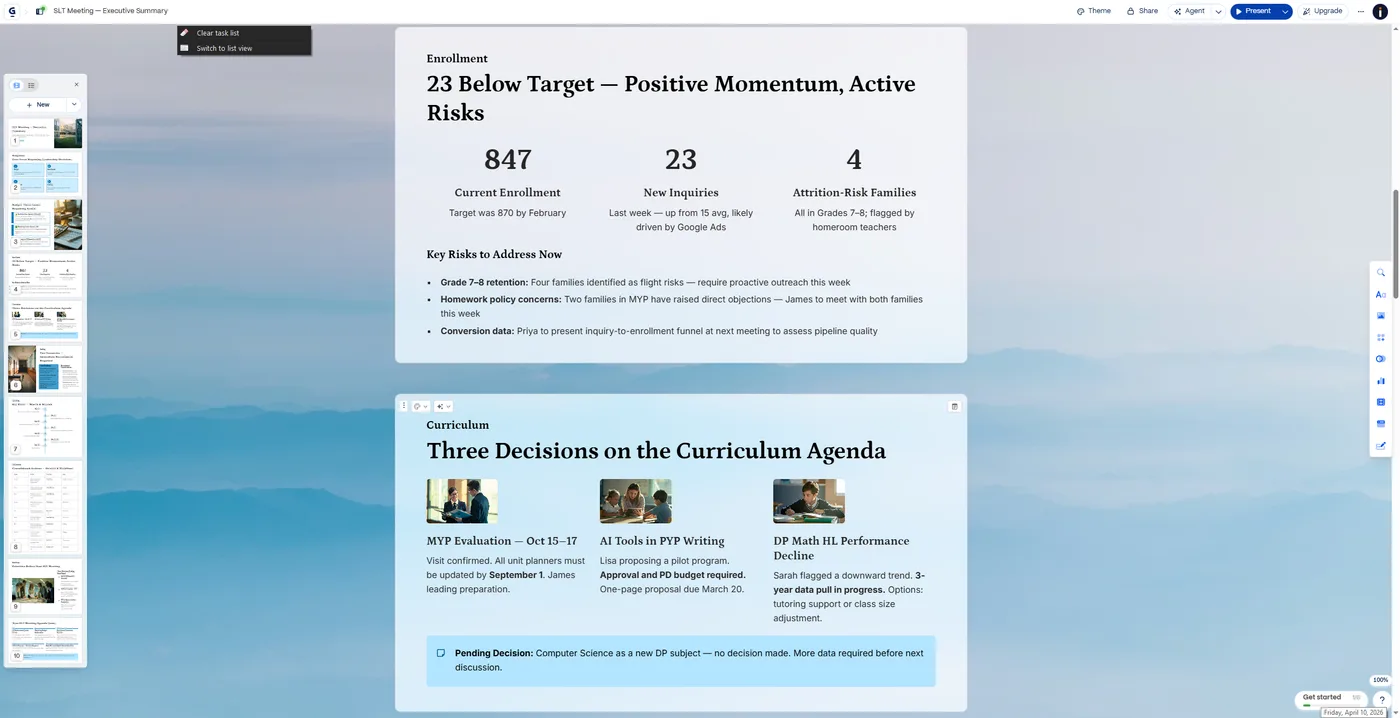
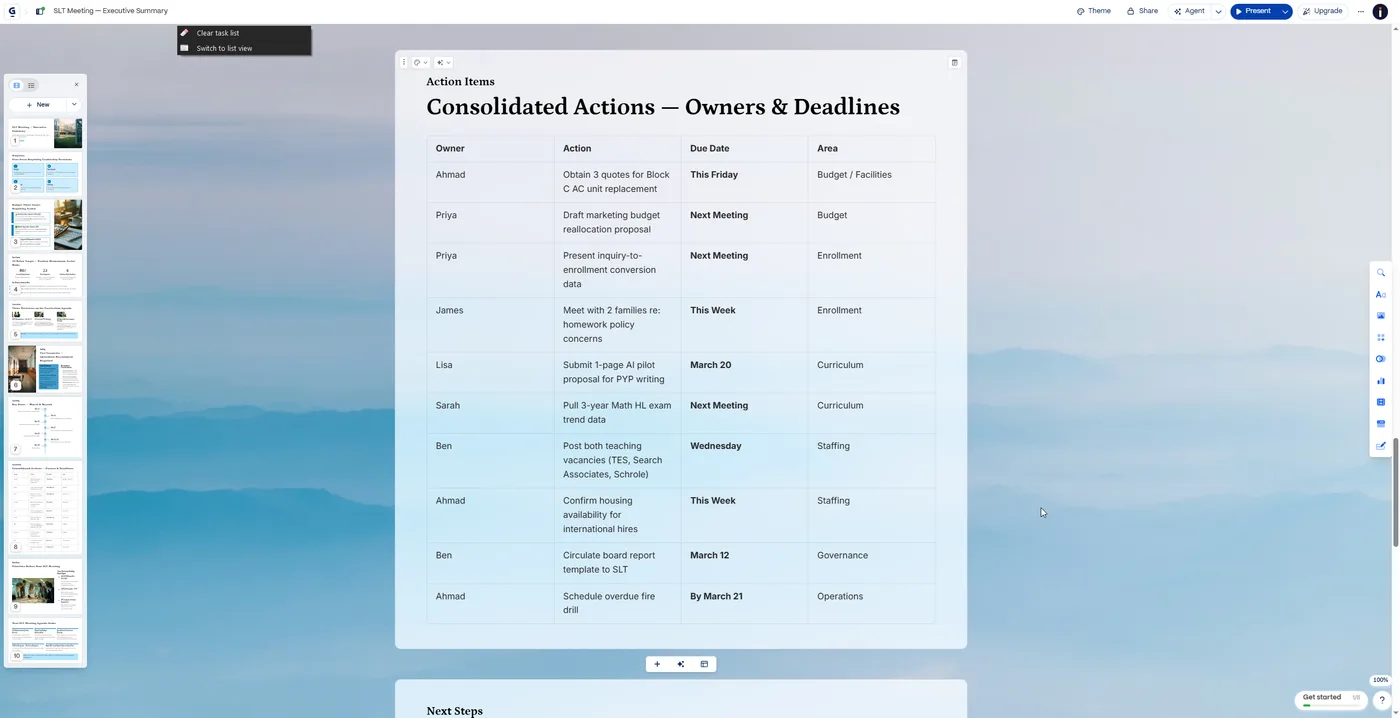
That’s the transformation: raw meeting notes to a board-ready deck in under 60 seconds. Each card is editable - click into any card to:
- Edit text directly (just click and type)
- Swap images (click the image, then choose a replacement - AI-generated, stock, or upload your own)
- Change the layout of that card (click the layout icon in the card toolbar)
- Add or delete cards using the ”+” between cards or the three-dot menu on each card
Step 10. When you’re satisfied, click the “Share” button in the top-right corner. You have several options:
- Share as link - best for digital distribution. Recipients see the full interactive card experience. On Pro, you get analytics showing who opened it and how long they spent on each card.
- Export as PDF - each card becomes a page. Cleanest export option. Preserves the design faithfully.
- Export as PowerPoint (.pptx) - converts cards to slides. Fair warning: the conversion isn’t perfect. Text spacing shifts, interactive elements are lost, and complex layouts may need manual adjustment.
- Export as PNG - individual card images.
The “Paste Text” Workflow (My Favorite)
This is how I use Gamma most often. I don’t start from a blank prompt - I start from notes I’ve already written.
Step 1. Write or gather your content in any format. Meeting notes, a Claude output, bullet points, even a rough email draft. It doesn’t need to be polished.
Step 2. In Gamma, click “Create New” → “Paste text” → “Presentation.”
Step 3. Paste your content into the text box. In my experience, if you paste bullet points, it expands them into full slide content. If you paste paragraphs, it summarizes and structures them.
Step 4. Follow steps 6-10 above - review the outline, pick a theme, generate, edit, share.
This is the workflow that turned my messy meeting notes into a board presentation in 60 seconds. The AI handled structure and design. I spent my time on accuracy and emphasis - the parts that actually matter.
The Gamma Agent (New in 2025)
Gamma 3.0 introduced an AI editing partner called the Agent. It lives inside the editor and responds to natural language commands. Instead of clicking through menus, you type what you want:
- “Make the whole deck more visual”
- “Add a comparison table to slide 4”
- “Research current market data on AI adoption in education and add it to the trends section”
- “Restyle this deck to match a corporate blue theme”
The Agent can make changes across the entire presentation from a single instruction. It can also search the web and add cited findings to your slides. It’s the feature that turns Gamma from “quick draft tool” to “working design partner.”
Where Gamma Falls Short
PowerPoint export is messy. The vertical card format doesn’t map cleanly to 16:9 slides. If your final deliverable must be a polished PowerPoint file - for a conference, a projector, or a strict brand template - expect to spend time cleaning up the export. PDF export is much cleaner.
Limited design control. Gamma handles design decisions for you. That’s the feature and the limitation. If you want pixel-level control over spacing, alignment, and element positioning, you’ll be frustrated. PowerPoint and Keynote still win for precise layout work.
Free tier runs out fast. The free credits sound generous until you realize each presentation uses a chunk of them. In my experience, that’s roughly 10 decks total, not per month. Credits don’t refresh. Once they’re gone, you’re choosing between paying or leaving.
AI-generated content still needs editing. The text Gamma writes is serviceable but generic. Treat every slide as a first draft. The value is in the structure and design, not the prose.
No offline mode. You need an internet connection. No editing on planes, no working from spotty hotel wifi.
Gamma vs. PowerPoint: When to Use Which
| Situation | Use Gamma | Use PowerPoint |
|---|---|---|
| Internal team update | Yes | Overkill |
| Board presentation (shared as link) | Yes | No |
| Board presentation (projected on screen) | Maybe - export to PDF | Yes |
| Conference keynote | No | Yes |
| Client pitch with strict brand template | No | Yes |
| Quick deck from meeting notes | Yes | Too slow |
| Turning a blog post into a presentation | Yes | Painful |
Gamma is a first-draft machine. If your presentation workflow is “stare at a blank slide for 20 minutes,” Gamma eliminates that entirely. If your workflow is “refine a polished deck to brand specifications,” keep using PowerPoint.
I use both. Gamma for speed, PowerPoint for finish.
Want to build a complete AI toolkit for your leadership practice? I cover tool selection - when to use which tool for which task - in my AI Leadership course. No feature tours. Just the practical decisions that save you time every week.
Further reading

Want help building systems like this?
We help school leaders automate the chaos and get their time back.